A Quick Guide to
PATANYX Browser
A little heads-up if you try PATANYX: I built it around privacy and keeping your information on your own computer, so some things work a little differently from what you might be used to.
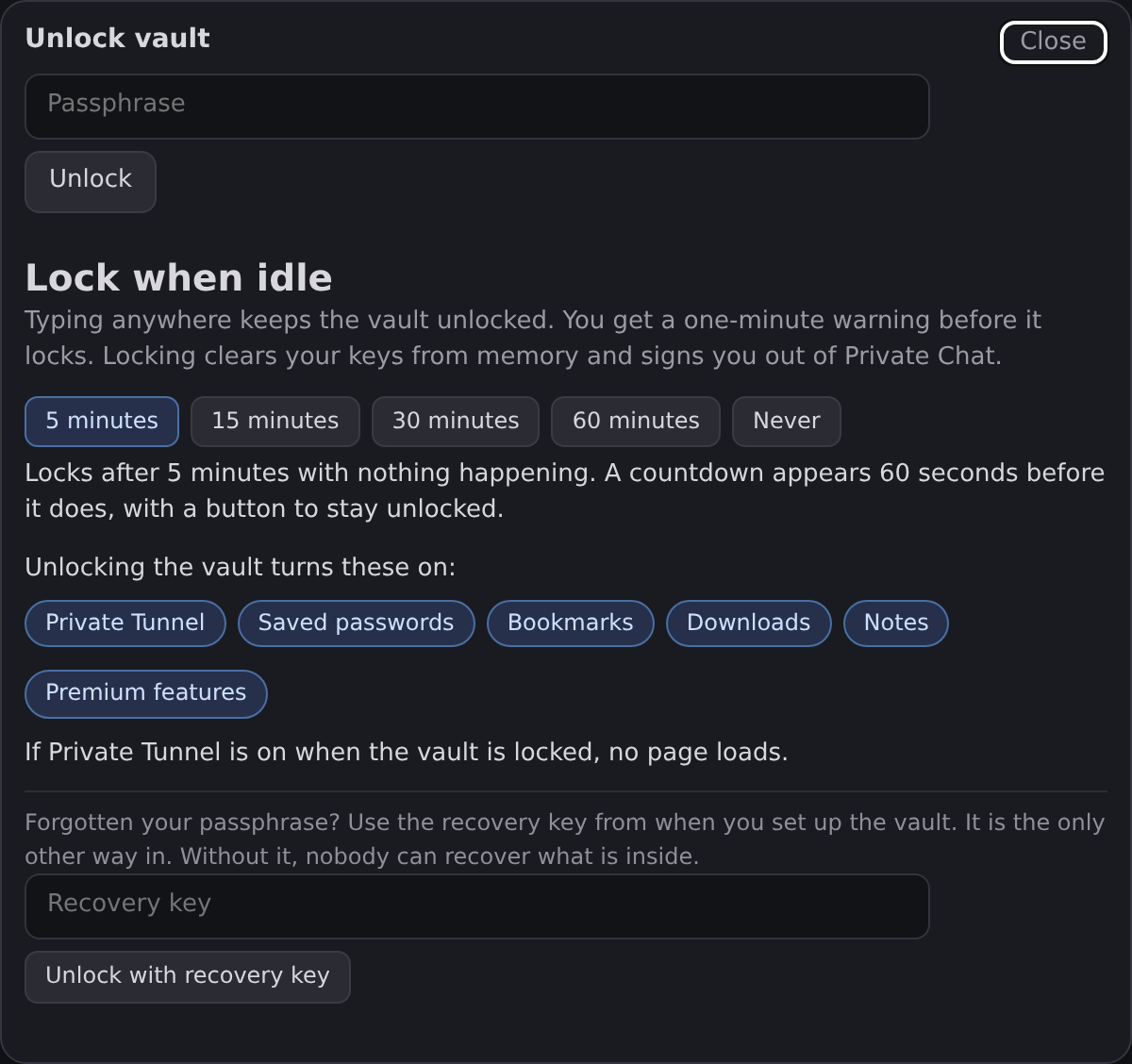
Unlock your Vault before saving passwords
Think of the Vault as your digital safe. You make it the first time you use PATANYX. If it is locked when you try to save a login, PATANYX tells you the password was not saved.
It locks itself again after the time you pick, five minutes to start with. On Windows it also locks when your computer does.
On Windows, click Fill password when it lights up
When you open a page with a saved login, the Fill password button appears in the toolbar and turns green. Click it, and PATANYX types the login in for you.
No button usually means nothing is saved for that page, or the Vault is locked. Open the Vault panel and it will tell you which, or say if autofill is not available in that tab.

Your bookmarks open with your Vault too
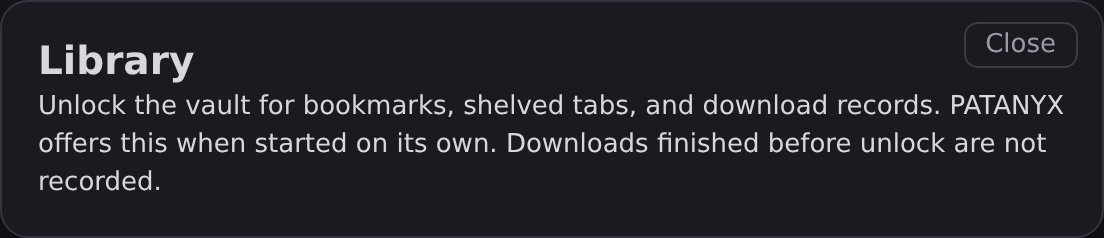
Your bookmarks, saved passwords, and notes are encrypted on your computer and open with the same passphrase. Unlock the Vault and your bookmarks are in Library, with your shelved tabs and downloads.
Until then, Library says so instead of just looking empty.
Keep your recovery key somewhere safe
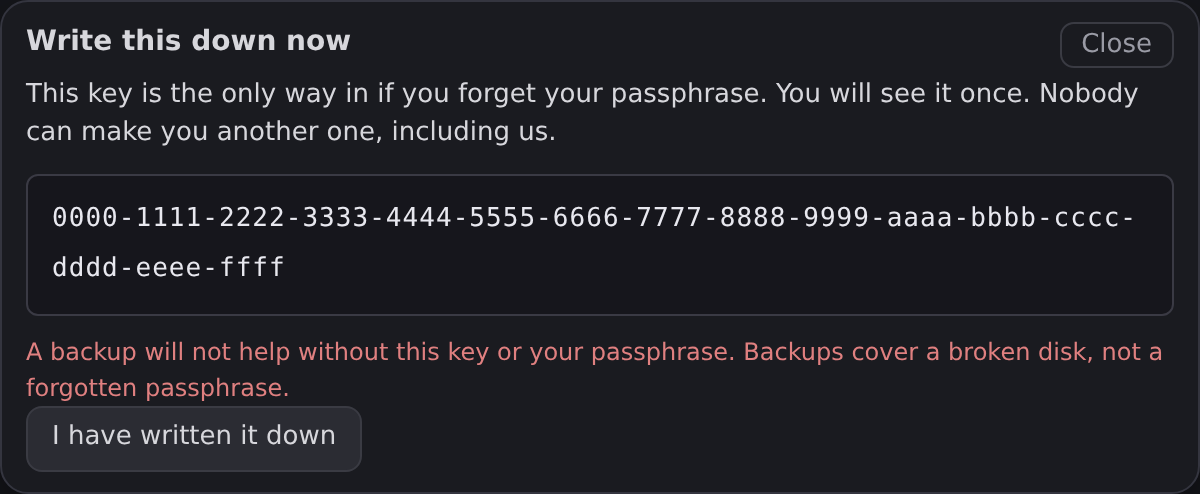
You see it once, when you make your Vault. If you forget your passphrase, it gets you back in, and even I cannot reissue it. Write it down somewhere other than the computer you browse on.
One catch: the recovery key opens the Vault, but your bookmarks still need your passphrase.
Expect to sign in to websites again after closing the browser
PATANYX starts a fresh session every time you launch it, so sites you were signed in to will ask again.
Saving a password does not keep you signed in, but it makes signing back in quick.
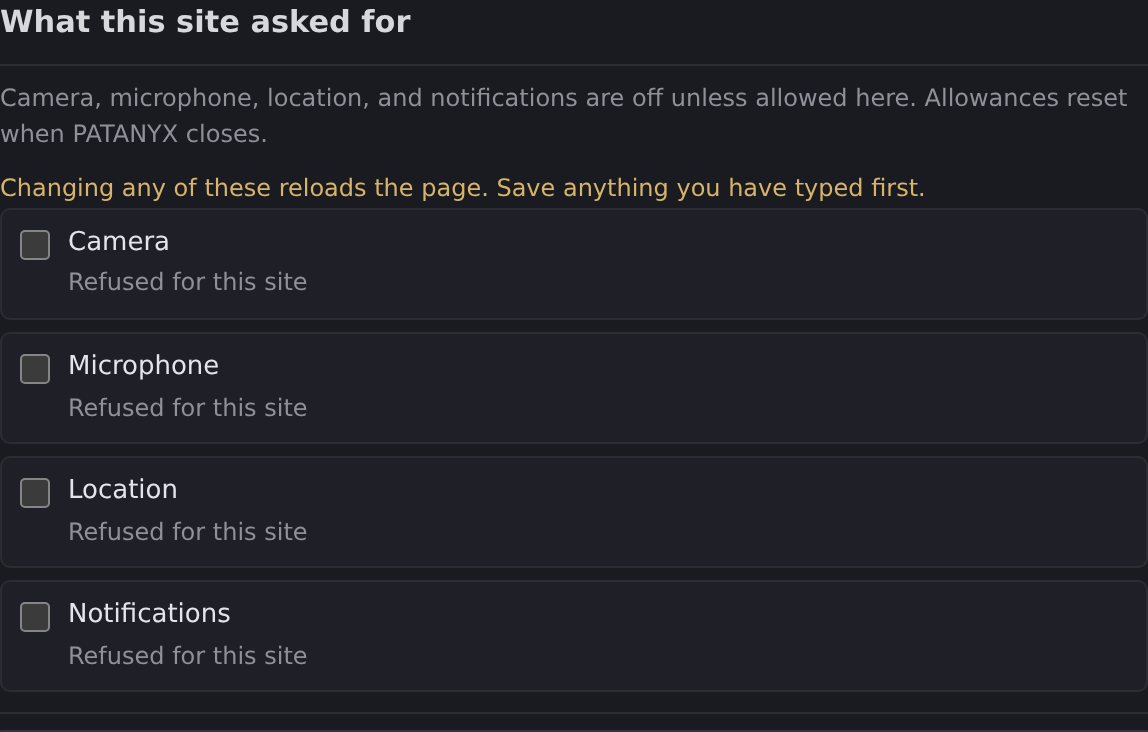
On Windows, camera, microphone, location, and notifications start blocked
If a site needs one, turn it on in the Privacy panel. Whatever you allow lasts until you close PATANYX, and then it is blocked again.
Turning one on reloads the page, so do it before you fill anything in. On Linux the browser engine does not offer these controls.
That is the whole list
If something here does not match what you are seeing, tell me about it.
