A Quick Guide to PATANYX Premium
This guide covers the two bundles Premium unlocks: six features in all. One reads text wherever it is, including inside pictures. The other makes a wall of open tabs behave like a list you can search. All of it runs on your machine.
Turning Premium on
Premium is a signed token you keep, checked by your own browser. It is not an account, so there is no password and nothing to sign in to. These are the things worth knowing before you paste it in.
Make an encrypted backup from the vault panel's Backup tab. Your data normally carries straight over. The backup is there in case anything goes wrong.
Copy it the moment you see it and store it somewhere safe, such as your vault or a password manager. EdgeXene cannot recover or resend it.
Premium activates on up to five devices. The first time your vault opens after you paste the token, PATANYX activates that device. After that it works offline. A license carries ten activations in all, enough to fill all five slots and replace each one once.
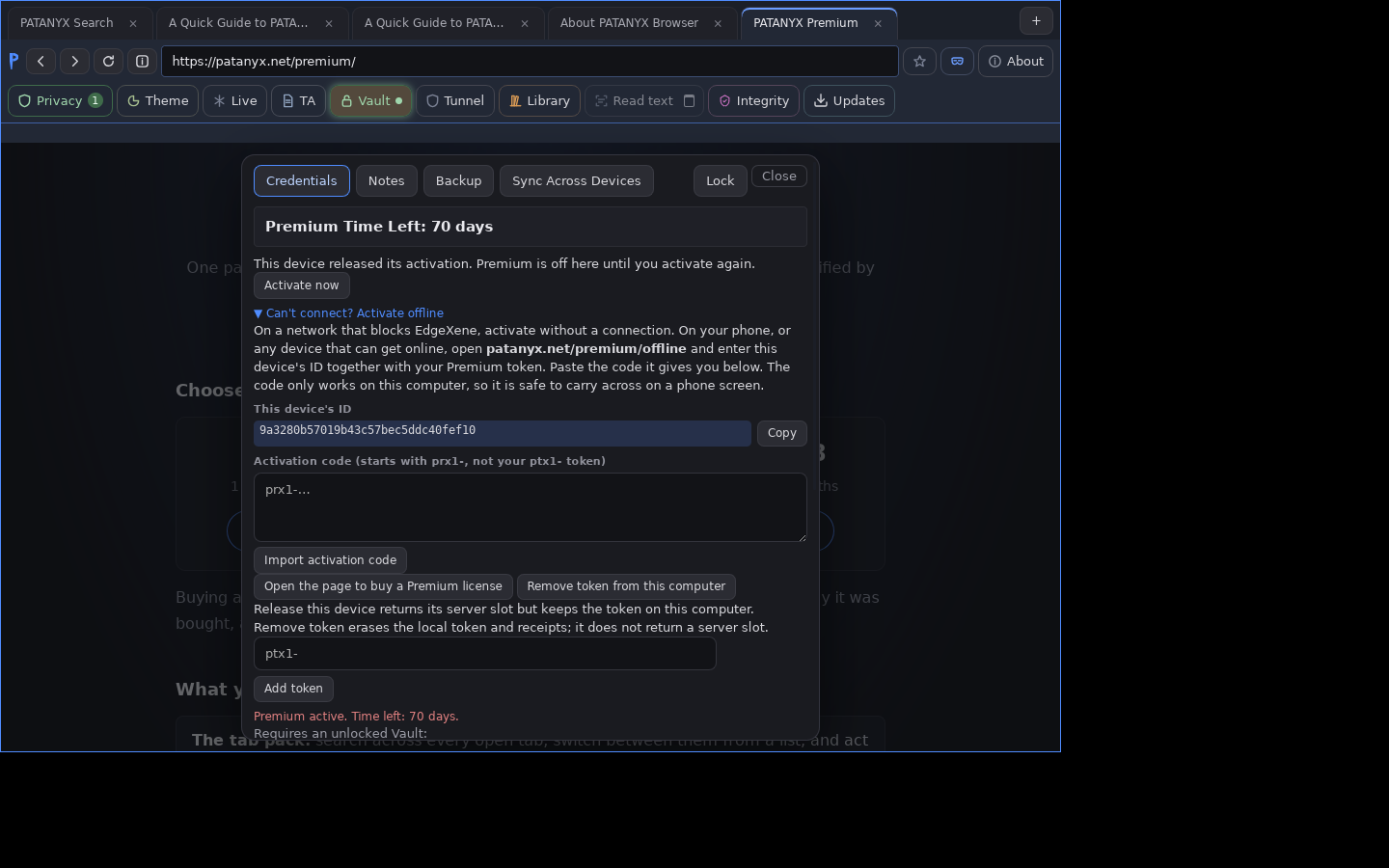
If activation cannot get through, because the network is managed, a VPN is in the way, or something is inspecting encrypted connections, you can activate without that machine reaching us at all. Open patanyx.net/premium/offline on another device, such as your phone, since the blocked machine is the one that cannot get out. Enter the device ID shown in your vault's Premium row along with your token, and it gives you a code. Paste that code into Can't connect? Activate offline in the same row.
Both bundles below are marked Windows and Linux on the About page. Check there for the current platform state before you count on one.
One payment, nothing renews, no card kept on file. When the term ends the Premium features stop until you buy another. Buying early does not add time.
OCR Bundle: read anything, three ways
Pull text out of almost anything on a page. Drag across a screenshot, meme, scan, receipt or image and PATANYX extracts the words for you. The processing stays on your device. Nothing is uploaded.
Text Capture · Image Text Review · Deep Recall
Text Capture
Drag a rectangle over any part of a page and read the text inside it. It works on ordinary text, and it works on text that only exists as pixels: a screenshot someone sent you, a scanned receipt, words baked into a picture.
This is the one to reach for when a page will not let you select something. Nothing leaves your machine.
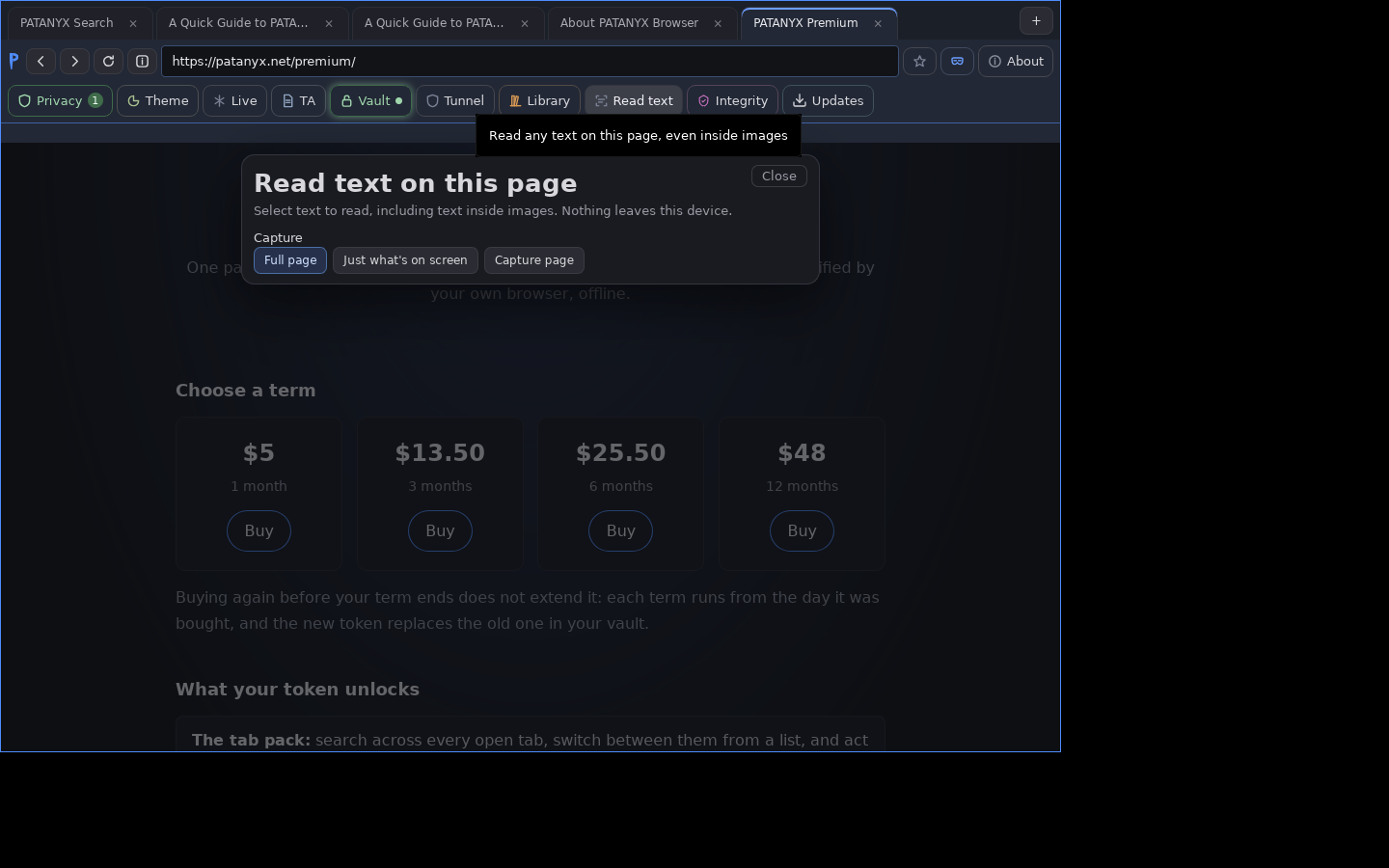
Image Text Review
Check an image before you share it. PATANYX reads the text in the picture and shows you what it gives away: an e-mail address, a card number, a key tucked into the background, a street sign you did not look twice at.
It is the pass you make before a screenshot leaves your hands. It runs on your device and nowhere else.
Deep Recall
Save a page, then find it again months later by any word you remember. Including a word that appeared only inside an image on that page, which ordinary history and bookmarks cannot help you with.
You choose what gets kept. It is your own archive, held on your machine, searched on your machine.
Tab Pack: find it, move it, clear it
A wall of open tabs stops being a wall. Search across all of them from one place, jump to the one you meant, and then deal with them in groups instead of one at a time. Tab search happens locally, and your query never leaves your device.
Multi-Tab Search · Tab Switcher · Batch Tab Actions
Multi-Tab Search
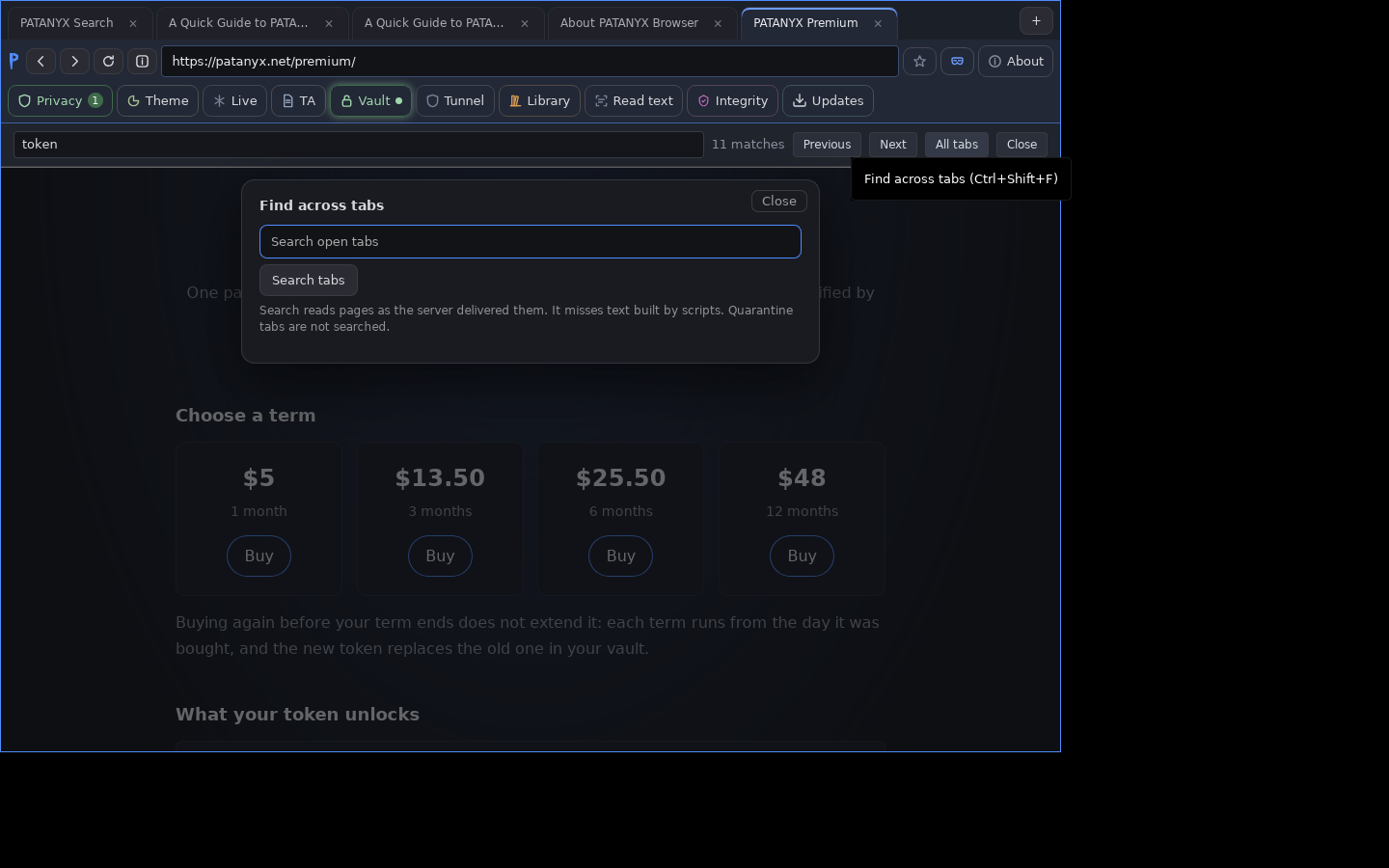
Search across every open tab from one place, and see the matching text in context before you jump to it. You find the sentence, not just the tab that might contain it.
This is the answer to "I have no idea which of these it is."
One limit worth knowing: search reads each page as the server delivered it, so text a page builds with scripts after loading is not searched, and quarantine tabs are left out.
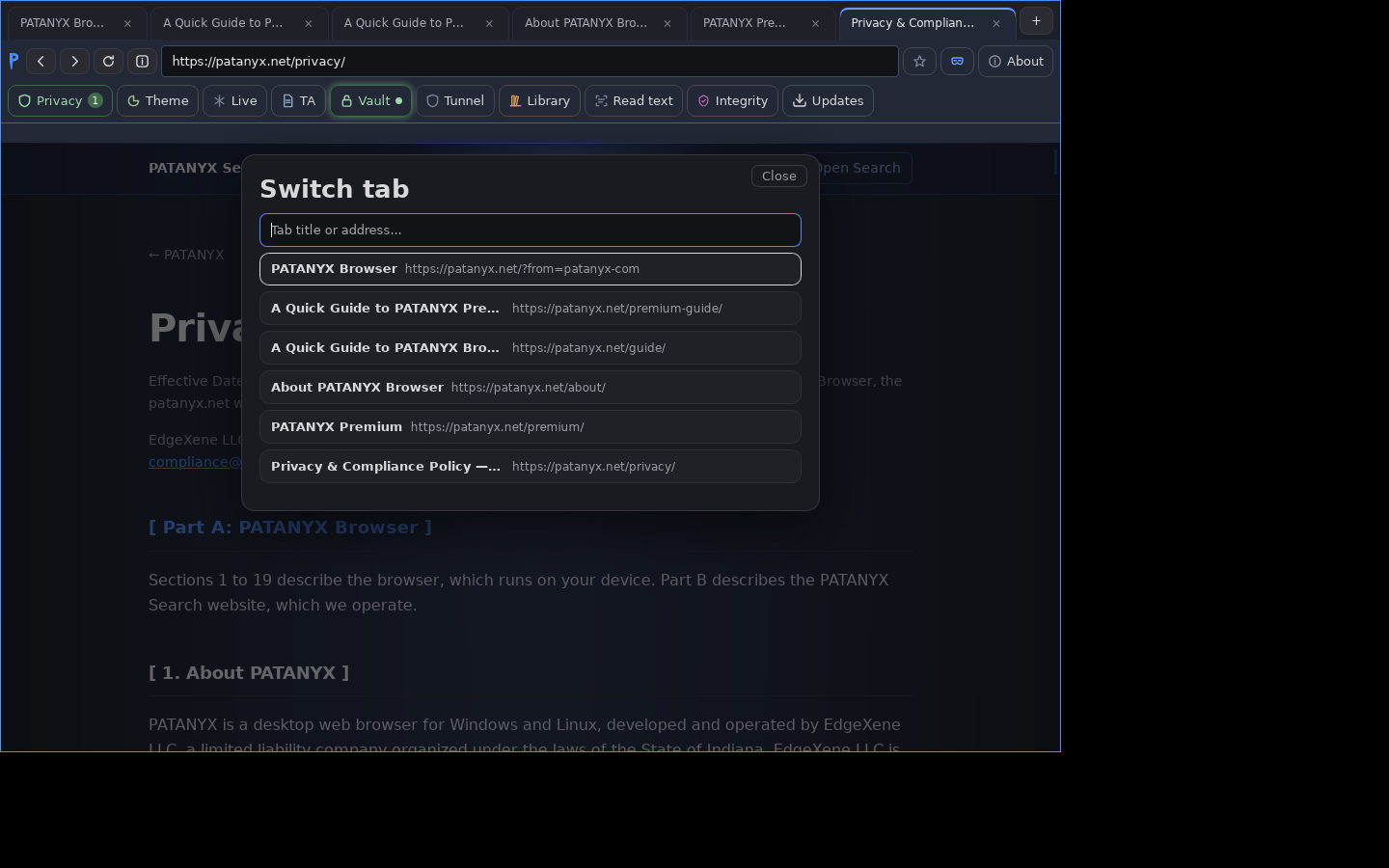
Tab Switcher
Find a tab by typing part of its name, even when you do not remember it exactly, and switch straight to it from a list.
No hunting along a strip of shrinking favicons trying to work out which narrow sliver is the one you want.
There is no toolbar button for this. Press Ctrl+K to open Jump to, then choose Switch tab.
Batch Tab Actions
Act on tabs in groups: close them, bookmark them, or set them aside together, instead of cleaning up one at a time.
The end of a piece of work usually leaves nine tabs behind. This is how you put them all away in one move.
There is no button for this one either. Press Ctrl+K to open Jump to, then choose Select tabs.
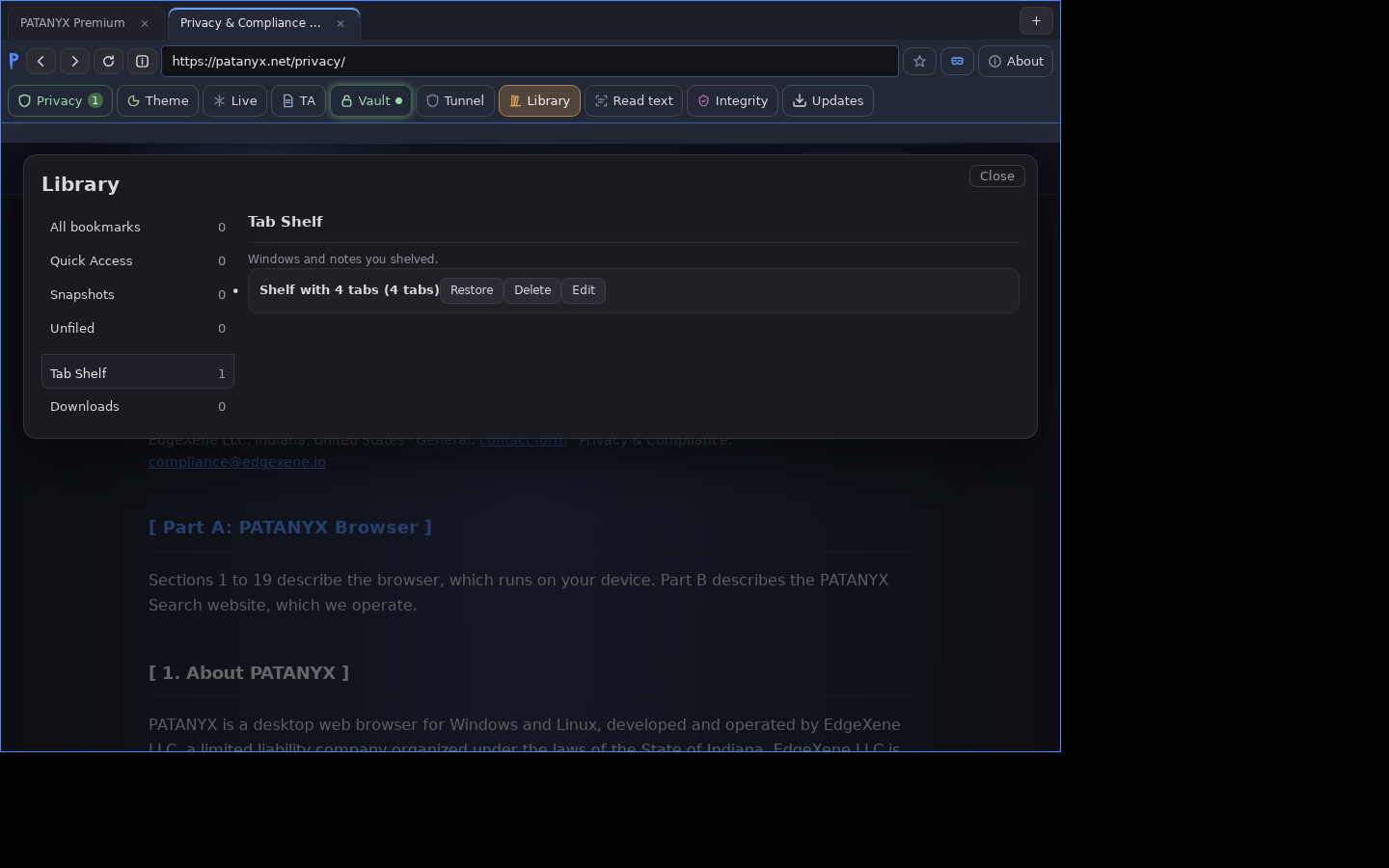
Shelve is not close. The tabs you set aside land in the Library's Tab Shelf as a single entry, so putting a piece of work away is not the same as throwing it out.
To get them back, open Library in the toolbar and choose Tab Shelf from the list down the left side, under Snapshots and Unfiled. Your shelf is there with the number of tabs it holds, and a Restore button that opens them all again. Delete and Edit sit beside it.